Multi Factor Authentication

Multi Factor Authentication (MFA)

We have enhanced our Multi-Factor Authentication (MFA) using advanced security controls.

Instead of asking you to verify your identity every time you log in, MFA will now be applied more intelligently.

What this means for you

  • You may notice fewer security prompts when logging in
  • You may be asked to complete a quick verification step when performing certain actions, such as:
    • Making payments or transfers
    • Adding or updating payees
    • Managing your cards (e.g. PIN Changes, blocking/unblocking, digital wallet setup)
    • Updating your password or security settings
    • Setting up or changing automatic payments

Why we've made this change

This approach allows us to:

  • Improve your experience by reducing unnecessary interruptions
  • Enhance security by applying extra protection when it matters most
  • Align with accepted security standards

What you need to do

To ensure a seamless experience:

  • Make sure your contact details are up to date
  • Keep your registered device secure
  • Follow any prompts when completing sensitive actions

Need help?

If you have any questions, or need assistance, please contact us.
MFA Methods

  • Passcodes are unique codes generated by an Authsignal's authenticator app. These codes provide an additional layer of security and should be stored in a safe and secure manner- such as a password manager.

    Setting up Passcodes:

    1. Download or securely save the passcodes provided
    2. Use the generated passcodes to verify your identity when prompted
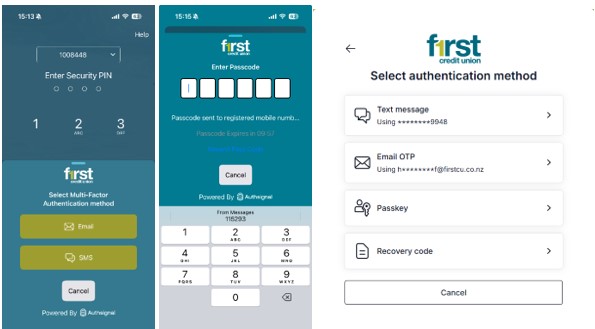
  • A one-time password (OTP) is sent via SMS to your registered mobile phone number. This method ensures that only someone with access to your phone can complete the login process.

    Setting up SMS (OTP)

    1. Login to Online Banking and select SMS option
    2. An OTP will be sent to your mobile phone to verify your identity when prompted
    3. You will need to enter this code to complete the authentication process

  • A one-time password (OTP) is sent to your registered email address. This method ensures that only someone with access to your email can complete the login process.

    Setting up Email (OTP)

    1. Login to your Online Banking  and select the Email option when the pop up appears.
    2. You will receive a verification code via email. Enter this code to complete the authentication

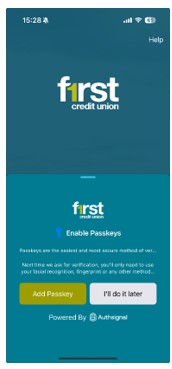
  • A Passkey is a simple and convenient authentication method that allows you to sign in using a PIN or biometric authentication (such as a fingerprint or facial recognition) on supported devices. Passkeys are generated and managed by your device.

    Setting up Passkeys

    1. Login to your Online Banking (Mobile Banking app or Internet Banking- Desktop Browser)
    2. Complete Passkey Enrolment by first authenticating with SMS (OTP) or Email (OTP)
    3. Select Passkey authentication and follow the on-screen instructions to set up your Passkey
    4. Once configured, you can use your Passkey to access your Online Banking using biometrics (facial or fingerprint) or PIN if enabled on device
  • We recommend that you use the Passkey method to authenticate as this is the most secure option available at this time.