
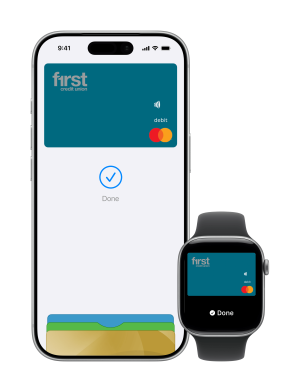
Apple Pay

Introducing Apple Pay. Your iPhone is now your First Credit Union card. 

With Apple Pay, you can pay quickly and easily with your First Credit Union Debit Mastercard directly from your iPhone or Apple Watch. 

  • Fast & easy: With Apple Pay, pay directly from your iPhone or Apple Watch, anywhere contactless payments are accepted.
  • A safe & secure way to pay: Apple Pay uses the security features built into your Apple device – to help keep your purchases private and secure. Just double-click the side button of your iPhone or Apple Watch and hold near the reader to pay.
  • Simple online checkout: With Apple Pay, there's no need to manually fill out your payment details. Just look for Apple Pay at checkout when shopping in app or online.

How it works 

No wallet? No problem. You can now pay directly from your iPhone or Apple Watch with your First Credit Union Debit Mastercard anywhere you see the Apple Pay symbol in-store, online or in your favourite participating apps. 

In-store payments

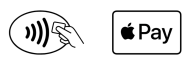
Look for the contactless payment symbol or the Apple Pay symbol. 
  • With iPhone: Double-click the side button, authenticate with Face ID, Touch ID or your passcode, then hold your device near the reader to pay.
  • With Apple Watch: Double-click the side button, then hold your device near the reader to finish your purchase.
Online or in-app payments
  1. On the checkout page, select Apple Pay as the payment option.
  2. If necessary, enter your billing, delivery and contact information.
  3. You'll see ‘Done’ and a tick on the screen when your payment is successful.
  • Apple Pay is available on iPhone, iPad, Apple Watch, Mac with Touch ID, Mac with an Apple Pay enabled iPhone or Apple Watch and the latest OS.

    For more information, please visit the Apple Pay website.
     

  • Open the menu in the First Credit Union app and tap Card Manager. Tap ‘Add to Apple Wallet’ on the card you want to add to Apple Pay. Follow the prompts to complete the setup.

    Alternatively, open the Wallet app on your iPhone. Tap the ‘+’ sign and follow the prompts to add a new card. Then, verify your card, which can usually be done via text. 

  • You can use Apple Pay on your Apple device in stores wherever you see one of these symbols:

    Image not found
    To use Apple Pay in your favourite apps, look for the ‘Buy with Apple Pay’ button.

  • When paying in-store

    First, check if the store accepts contactless payments or if the Apple Pay symbol is displayed.

    With iPhone: Double-click the side button, authenticate with Face ID, Touch ID or your passcode, then hold your device near the reader to pay.

    With Apple Watch: Double-click the side button, then hold your device near the reader to complete your purchase.

    When paying on websites or within apps

    At checkout, simply select Apple Pay as your payment option. If required, fill in your billing, delivery, and contact information.

    You’ll see ‘Done’ and a tick on the screen when your payment is successful.

  • Apple Pay provides a safer alternative to physical cards by requiring Face ID, Touch ID, or passcode for purchases on Apple devices. It does not share your card number or identity with merchants. 

    The actual card numbers are not stored on your device or Apple servers. In other words, you do not send your actual card number to merchants for in-store payments, and you only share authorised information like name and address during online payments. Apple does not retain transaction information that can be linked back to you when you pay with a debit or credit card.